Microsoft Intune Ignite 2026: Windows Autopilot Device Preparation and Post-OOBE Company Portal Experience
Configuration guide and architectural review of Windows Autopilot Device Preparation and the Ignite 2026 automatic post-OOBE Company Portal experience (Limited Public Preview), including Zero Trust boundaries and rollback.
A large share of Day-1 help desk calls after unboxing a corporate laptop stem from uncertainty rather than actual failure. Once the Out-of-Box Experience (OOBE) drops a new employee onto the Windows 11 desktop, apps and security baselines continue installing silently in the background—prompting the classic *"Is it still installing or is it stuck?"* ticket.
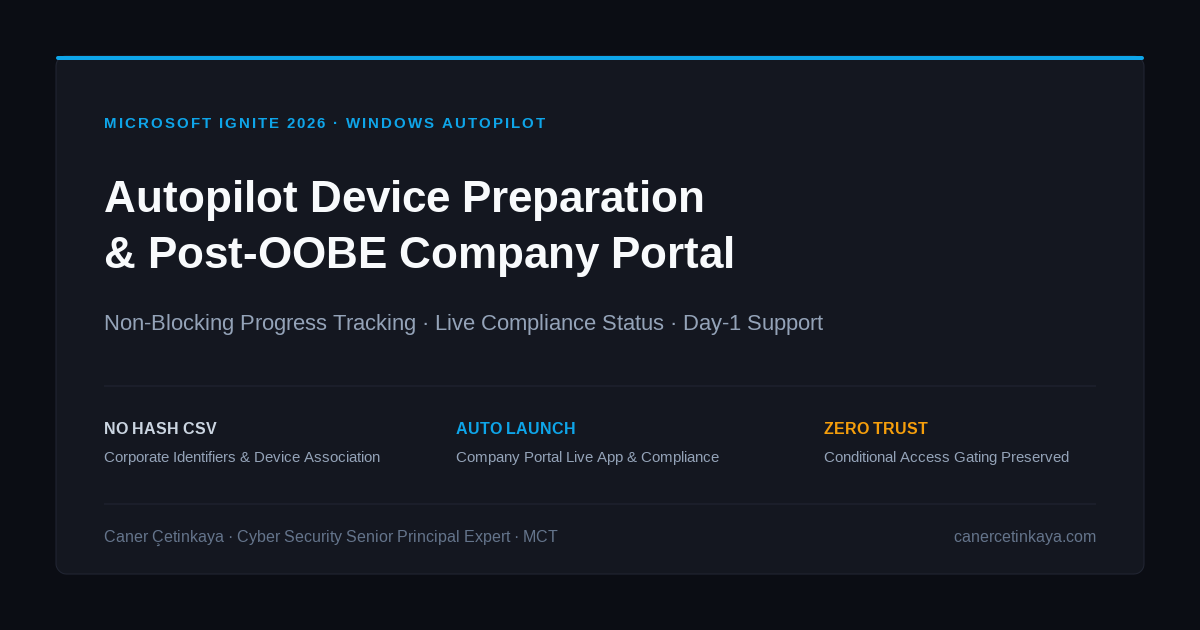
At Microsoft Ignite 2026, Microsoft introduced an automatic post-OOBE Company Portal experience (`limited public preview`) inside Windows Autopilot Device Preparation to close that Day-1 visibility gap.
Device Preparation Architecture and the Ignite 2026 Upgrade
Per Microsoft Learn documentation, Windows Autopilot Device Preparation modernizes classic Autopilot by simplifying hardware registration and OOBE tracking:
- No manual hardware hash CSVs by default: Hardware trust can be established using Corporate Identifiers (manufacturer, model, serial number) or UEFI/TPM-backed Device Association.
- Streamlined OOBE app and script tracking: Administrators assign required system-context Win32/LOB apps and PowerShell scripts to a dedicated Entra device group and track them natively during OOBE.
- Automatic post-OOBE Company Portal (`limited public preview`): Announced at Ignite 2026, the Company Portal app now opens automatically once the user reaches the desktop in a non-blocking pane, displaying live device compliance status, completed and pending app installations, and overall setup completion.
Portal Configuration Steps
Following Microsoft Learn's User-driven Microsoft Entra join workflow, deployment requires four clean steps:
- Automatic MDM enrollment: Enable Intune automatic MDM enrollment under Microsoft Entra ID
Mobility (MDM and WIP)for target user groups. - Assigned Entra device group: Create an
AssignedEntra security group for prepared devices and grant ownership to theIntune Provisioning Clientservice principal. - Trusted hardware onboarding: Upload pilot device serial numbers under
Devices → Enrollment → Corporate device identifiers(or configure Device Association where supported). - Device Preparation policy: Under
Devices → Enrollment → Device preparation policies, bind the device group, lean core OOBE app list, and user experience settings.
Architectural Boundary: Transparency Never Relaxes Zero Trust
While non-blocking desktop entry improves Day-1 user experience, security teams must account for two operational boundaries:
- Conditional Access evaluation window: Because users reach the desktop faster, they may launch Outlook or Teams before BitLocker, Defender, and compliance checks evaluate
Compliant. Conditional Access (Require device to be marked as compliant) will rightly block corporate apps during that brief window—Day-1 onboarding guidance should instruct users to watch Company Portal until compliance turns green. - Not a substitute for runtime defense: Device Preparation establishes a repeatable, trusted starting baseline, but it does not replace EDR, local AI agent governance, or ongoing vulnerability management.
Lab Readiness and Day-1 Verification Scripts
To collect Corporate Identifier fields (manufacturer, model, serial number) and TPM readiness on a pilot Windows 11 laptop, use this Read-only audit (Salt okunur denetim) PowerShell snippet. Get-Tpm requires local administrator elevation (handled gracefully with SilentlyContinue); compatible with Windows PowerShell 5.1 and PowerShell 7 and not yet executed inside your production tenant.
# Code Class: Read-only audit (no system modifications)# Environment: Windows 11, Windows PowerShell 5.1 or PowerShell 7 (elevation required for Get-Tpm)$cs = Get-CimInstance -ClassName Win32_ComputerSystem -ErrorAction SilentlyContinue$bios = Get-CimInstance -ClassName Win32_BIOS -ErrorAction SilentlyContinue$tpm = Get-Tpm -ErrorAction SilentlyContinue [PSCustomObject]@{ Manufacturer = if ($cs) { $cs.Manufacturer } else { "Unknown" } Model = if ($cs) { $cs.Model } else { "Unknown" } SerialNumber = if ($bios) { $bios.SerialNumber } else { "Unknown" } TpmPresent = if ($tpm) { $tpm.TpmPresent } else { "CheckElevated" } TpmReady = if ($tpm) { $tpm.TpmReady } else { "CheckElevated" }} | Format-ListTo confirm that newly provisioned Windows 11 pilot endpoints successfully onboarded to Defender for Endpoint over the last 7 days, the following Telemetry collection (Telemetri toplama) KQL query summarizes DeviceInfo with arg_max(Timestamp, *) to avoid duplicate rows. It confirms security sensor onboarding rather than complete application installation.
// Code Class: Telemetry collection (Microsoft Defender XDR Advanced Hunting)// Data Source: DeviceInfo | Time Window: Last 7 daysDeviceInfo| where Timestamp >= ago(7d)| where OSPlatform == "Windows11" and isnotnull(DeviceName)| summarize arg_max(Timestamp, OSVersionInfo, OnboardingStatus, JoinType) by DeviceId, DeviceName| summarize DeviceCount = count(), SampleDevices = make_set(DeviceName, 5) by OnboardingStatus, JoinType, OSVersionInfo| order by DeviceCount descPilot Rollout and Rollback Plan
- Lean OOBE app set: Validate the policy on 5–10 IT pilot laptops first, keeping only essential identity, security, and browser packages in OOBE while letting larger apps complete visibly in Company Portal.
- Success metrics: Track median OOBE duration, 24-hour compliance attainment rate, and Day-1 support ticket volume.
- Rollback plan: If preview issues impact onboarding, unassign target user groups from the Device Preparation policy, confirm fallback to your existing classic Autopilot deployment profile, and verify clean re-enrollment on affected pilot hardware.
Together with the previous five installments in this Ignite 2026 Intune series, transparent Autopilot Device Preparation completes an end-to-end cloud-native endpoint lifecycle—from first boot to local AI governance and agent-assisted vulnerability remediation.
Primary Sources
- Microsoft Learn — Windows Autopilot device preparation overview
- Microsoft Learn — Tutorial: User-driven Microsoft Entra join workflow
- Microsoft Intune Blog — What's new in Microsoft Intune at Microsoft Ignite (November 2026)
- Microsoft Learn — Use compliance policies to set rules for devices you manage with Intune
Verified Primary Sources & Open-Source Repositories
This architectural guide was cross-corroborated against the official advisories, Microsoft Learn docs, and open-source PowerShell / KQL repositories below.
Multi-Channel Distribution Summary (X & LinkedIn Draft)
Toggle X (Twitter) & LinkedIn sharing drafts
Multi-Channel Distribution Summary (X & LinkedIn Draft)
Toggle X (Twitter) & LinkedIn sharing draftsFewer 'Is my new laptop stuck?' tickets on Day 1: Ignite 2026 brings an automatic, non-blocking Company Portal progress view after OOBE in Windows Autopilot Device Preparation. Full setup & Zero Trust guide live. #WindowsAutopilot #MicrosoftIntune #Ignite2026
Every help desk running Autopilot knows the Day-1 question: 'Are my apps still installing or is it frozen?' At Microsoft Ignite 2026, Windows Autopilot Device Preparation adds an automatic post-OOBE Company Portal progress screen. Here is the setup workflow, readiness audit, and Zero Trust boundary.
Related Architecture Articles
All Microsoft 365 →Microsoft Intune Ignite 2026: Windows Server Management (Insider Preview), Windows Autopatch, and Azure Arc Boundaries
Architectural breakdown of Windows Server management in Microsoft Intune (Insider Preview): supported edge/VDI scenarios, Windows Autopatch integration, Tier-0 isolation, and how it complements Azure Arc.
Microsoft Intune Ignite 2026: App Inventory, EAM Auto-Updates, App In-Use Detection, and CIS Windows 11 Benchmark Auditing
Configuration and architectural review of Microsoft Ignite 2026 Intune updates: device-level app inventory, Enterprise Application Management auto-updates, App In-Use Detection, and CIS Windows 11 v5.0.0 (Audit Only) in Intune Advanced Analytics.
Microsoft Intune Ignite 2026: Governing Local AI Agents on Enterprise Endpoints (Agent 365, Software Compliance & MXC)
Architectural and operational guide to Microsoft Ignite 2026 local AI agent governance in Intune: Agent 365 discovery, Software Compliance Policy, Intune SDK MAM for AI apps, and Microsoft Execution Containers (MXC).
Microsoft Intune Ignite 2026: Microsoft Perception Plain-Language Investigations, Real-Time Inventory, and Remote Help Diagnostics
Operational and architectural guide to Microsoft Perception plain-language investigations in Intune (Limited Public Preview), Custom Reports, Properties Catalog registry/file inventory, and consent-based Remote Help Diagnostic Data Reports.