Microsoft Intune Ignite 2026: Governing Local AI Agents on Enterprise Endpoints (Agent 365, Software Compliance & MXC)
Architectural and operational guide to Microsoft Ignite 2026 local AI agent governance in Intune: Agent 365 discovery, Software Compliance Policy, Intune SDK MAM for AI apps, and Microsoft Execution Containers (MXC).
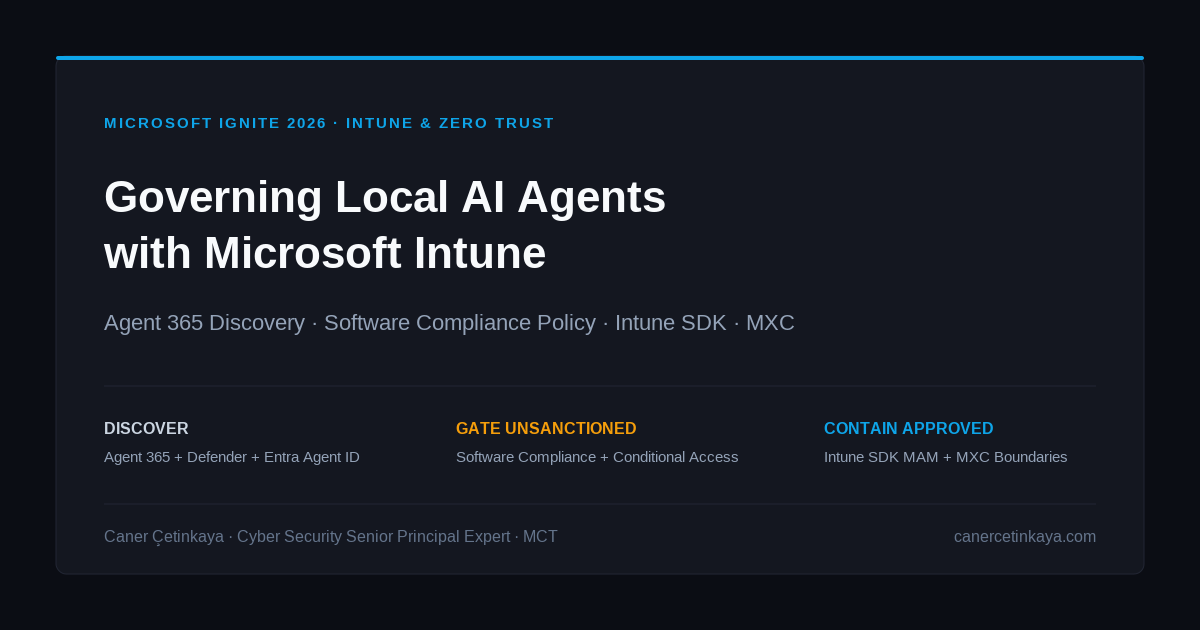
The enterprise endpoint attack surface has shifted rapidly over the past year. Employees and developers are no longer only opening generative AI tools inside a browser; they are installing autonomous local agents that read the file system, execute shell commands, and connect to corporate data through Model Context Protocol (MCP) servers. In its Microsoft Ignite 2026 announcements, Microsoft explicitly frames ungoverned AI agents as a new class of insider risk and introduces a four-part endpoint governance model built around Microsoft Agent 365, Intune Software Compliance Policy, Intune SDK App Protection, and Microsoft Execution Containers (MXC).
This guide separates vendor-confirmed Ignite 2026 capabilities from architectural assessment, walking through portal configuration paths, read-only audit scripts, blind spots, and production rollback controls.
Discovery and Identity Layer: Where Microsoft Agent 365 Fits
Enforcing endpoint policies without visibility leads either to operational outages or major blind spots. According to Microsoft's official Ignite 2026 announcements, Microsoft Agent 365 is not a standalone endpoint agent; it is the centralized control plane and observability layer unifying signals across Microsoft Defender, Microsoft Entra, and Microsoft Intune.
- Microsoft Defender discovery: Identifies more than 50 types of local AI agents, developer CLIs, IDE plugins, and MCP servers running across Windows and macOS endpoints.
- Microsoft Entra identity separation: Assigns Microsoft Entra Agent IDs to supported local coding tools and autonomous agents so agentic actions are separated from human audit trails and governed under least privilege.
- Microsoft Intune inventory: Collects registered Win32 (MSI product code) and Microsoft Store (package full name) application inventories from enrolled Windows 10 and Windows 11 devices to drive compliance evaluation.
From an architectural standpoint, Agent 365 discovery establishes visibility but does not enforce access boundaries on its own. Blocking unsanctioned agents and containing approved workloads requires Intune, Entra Conditional Access, and Defender working together.
Blocking Unsanctioned Agents: Software Compliance Policy (Public Preview)
Introduced in public preview at Microsoft Ignite 2026, Software Compliance Policy allows administrators to tie the presence of restricted local AI applications directly to Windows device compliance state.
Portal Configuration Flow
- Collect the app identifier: In the Microsoft Intune admin center, inspect
Apps → Monitor → Discovered appsor device-level app inventory to retrieve the platform-specific identifier: the MSI product code (`ProductCode`) for Win32 installers or the Windows package full name (`PackageFullName`) for Microsoft Store apps. - Create the compliance policy: Navigate to
Devices → Compliance → Policies → Create policy, select Windows, configure the Software compliance ruleset, and specify the restricted application identifiers. - Configure actions for noncompliance: Avoid immediate day-zero lockouts in production. Configure a grace period and end-user notification so affected employees know which application triggered noncompliance before access is revoked.
- Enforce via Conditional Access: When Microsoft Entra Conditional Access requires
Require device to be marked as compliantfor corporate workloads such as Exchange Online, SharePoint, or Teams, any endpoint running a restricted AI tool is flagged Noncompliant and blocked until the user uninstalls the software and completes a compliance sync.
For IT support teams, this introduces a predictable new ticket category: *"My device is noncompliant and Outlook will not open."* Help desk workflows should train analysts to inspect Company Portal compliance details first so they can guide users straight to removing the unapproved AI tool.
Read-Only Audit Script for Collecting Windows App Identifiers
The following PowerShell snippet is classified as a Read-only audit (Salt okunur denetim). It inspects standard Windows registry uninstall keys and installed Store packages on a pilot Windows 10/11 endpoint without making any system changes. Standard user read permissions are sufficient for HKLM and HKCU; run it in Windows PowerShell 5.1 for native Get-AppxPackage compatibility (PowerShell 7 may require the Windows compatibility layer). This script has not been executed inside your production tenant and should be validated on a lab endpoint first.
# Code Class: Read-only audit (no system modifications)# Environment: Windows 10/11, Windows PowerShell 5.1 (standard user or local admin)param( [string]$FilterPattern = "Claude|ChatGPT|Copilot|Ollama|LM Studio|Cursor") $uninstallPaths = @( "HKLM:\SOFTWARE\Microsoft\Windows\CurrentVersion\Uninstall\*", "HKLM:\SOFTWARE\WOW6432Node\Microsoft\Windows\CurrentVersion\Uninstall\*", "HKCU:\SOFTWARE\Microsoft\Windows\CurrentVersion\Uninstall\*") $win32Matches = foreach ($path in $uninstallPaths) { Get-ItemProperty -Path $path -ErrorAction SilentlyContinue | Where-Object { $_.DisplayName -and ($_.DisplayName -match $FilterPattern) } | Select-Object @{Name = "Source"; Expression = { "Win32/MSI" } }, DisplayName, DisplayVersion, @{Name = "Identifier"; Expression = { $_.PSChildName } }} $storeMatches = Get-AppxPackage -ErrorAction SilentlyContinue | Where-Object { $_.Name -match $FilterPattern } | Select-Object @{Name = "Source"; Expression = { "MicrosoftStore" } }, @{Name = "DisplayName"; Expression = { $_.Name } }, @{Name = "DisplayVersion"; Expression = { $_.Version } }, @{Name = "Identifier"; Expression = { $_.PackageFullName } } @($win32Matches; $storeMatches) | Format-Table -AutoSizeArchitectural Boundary: What Software Compliance Does Not Cover
An essential architectural limitation must be stated clearly: Intune Software Compliance Policy relies on registered Win32 MSI and Microsoft Store application inventories. A portable unpacked binary dropped into a user profile directory, a pip or npm installed CLI agent, or a standalone Python script does not register an MSI product code or Store package full name and will not be caught by Software Compliance alone.
Consequently, Software Compliance is never a substitute for Application Control for Business (WDAC), Microsoft Defender for Endpoint, or browser-layer controls such as Purview Browser DLP and BYOD AI data protection.
The following KQL query is classified as Telemetry collection (Telemetri toplama) for Microsoft Defender XDR Advanced Hunting. It queries DeviceProcessEvents over a 7-day Timestamp window using DeviceId, DeviceName, AccountName, FileName, FolderPath, and ProcessCommandLine, filtering empty command lines with isnotnull() and avoiding join-induced row multiplication. It proves execution of user-profile or script-based local AI/MCP processes rather than confirmed compromise; legitimate developer tooling can trigger false positives and must be baselined against approved engineering groups.
// Code Class: Telemetry collection (Microsoft Defender XDR Advanced Hunting)// Data Source: DeviceProcessEvents | Time Window: Last 7 daysDeviceProcessEvents| where Timestamp >= ago(7d)| where isnotnull(ProcessCommandLine) and strlen(ProcessCommandLine) > 0| where FolderPath has_any ("\\Users\\", "\\AppData\\")| where FileName in~ ("node.exe", "python.exe", "python3.exe", "uv.exe", "npx.cmd", "ollama.exe") and ProcessCommandLine has_any ("mcp", "modelcontextprotocol", "anthropic", "openai", "claude", "codex", "langchain")| summarize EventCount = count(), FirstSeen = min(Timestamp), LastSeen = max(Timestamp), SampleCommands = make_set(substring(ProcessCommandLine, 0, 180), 5) by DeviceId, DeviceName, AccountName, FileName| order by EventCount descProtecting Approved AI Apps and Runtime Containment
Outright bans on all AI tooling rarely hold and push employees toward unmanaged shadow tools. At Ignite 2026, Microsoft paired compliance blocking with two containment controls for sanctioned tools:
- App Protection Policies (MAM) via the Intune SDK: Microsoft confirmed that Microsoft Copilot, GitHub Copilot, Anthropic Claude, and OpenAI ChatGPT have integrated the Microsoft Intune SDK. Administrators can apply standard App Protection Policies (
Apps → Protection → App protection policies) to restrict copy-paste, Save-As, and unmanaged corporate data transfer across mobile and managed AI app sessions. - Microsoft Execution Containers (MXC): For approved local AI agents and coding CLIs on Windows, Intune exposes OS-level containment settings under
Endpoint security → Agent containment. MXC enforces file, directory, and network boundaries outside the agent's own control—allowing an agent to write to a designated repository while denying access to local credential stores or unapproved outbound network endpoints. - Defender AI Agent Runtime Protection: Deployed at scale via Intune (requiring Microsoft Defender Antivirus in active mode), Defender inspects supported local agent interaction points to detect prompt injection attempts and audit or block high-risk actions before execution.
Licensing, Dependencies, and Preview Caveats
Separating confirmed prerequisites from preview uncertainties is critical for enterprise planning:
- Confirmed dependencies: Software Compliance Policy requires Intune-enrolled Windows devices with app inventory enabled; enforcing access blocks requires Microsoft Entra ID P1 (or a suite including Conditional Access); runtime protection requires active-mode Microsoft Defender Antivirus and appropriate Defender/Intune licensing.
- Preview boundaries: Software Compliance Policy is currently in
public preview, and final GA licensing packaging, supported agent matrices for MXC and Agent 365, and Microsoft Graph/betaschemas may evolve prior to general availability. Pilot rings should be prioritized over full-tenant automation today.
Production Rollout and Rollback Plan
Because tying software compliance to Conditional Access directly affects user access to email and collaboration tools, disciplined change management is mandatory:
- Baseline and pilot ring: Audit existing AI usage via
Discovered appsand Defender hunting first, then scope the new compliance policy strictly to an IT and security engineering pilot group. - Grace periods and Report-only validation: Start noncompliance actions with a 3–7 day grace period and user notification rather than immediate lockout. Validate any new Conditional Access gating in
Report-onlymode—mirroring the staged rollout pattern covered in Entra Conditional Access Policy Plans. - Success metrics: Track false-positive disruptions in developer workflows, mean time for users to remove restricted tools and return to compliant status, and help desk ticket volume.
- Rollback plan: Export JSON backups of existing compliance and Conditional Access policies prior to rollout. If an unexpected outage occurs, unassign the pilot group from the Software Compliance policy, switch any newly introduced Conditional Access rule to
Report-only, trigger an Intune device sync, and confirm restored access to Outlook and Microsoft 365 on a pilot endpoint.
Microsoft Ignite 2026 moves Intune beyond binary allow-or-block controls for AI: organizations can now discover local agents through Agent 365, block unsanctioned installers through Software Compliance and Conditional Access, and safely bound approved tools with Intune SDK MAM and MXC. The highest-value immediate step for enterprise teams is baselining current app inventory, enabling Defender visibility for portable agents, and testing Software Compliance in a narrow pilot ring.
Primary Sources
- Microsoft Intune Blog — What's new in Microsoft Intune at Microsoft Ignite (November 2026)
- Intune Customer Success — A guide to governing local AI agents with Intune (November 2026)
- Microsoft Agent 365 Blog — What's new in Microsoft Agent 365 at Ignite 2026
- Microsoft Learn — Use compliance policies to set rules for devices you manage with Intune
- Microsoft Learn — App protection policies overview
Verified Primary Sources & Open-Source Repositories
This architectural guide was cross-corroborated against the official advisories, Microsoft Learn docs, and open-source PowerShell / KQL repositories below.
- SOURCEtechcommunity.microsoft.com/blog/microsoftintuneblog/what%E2%80%99s-n
- SOURCEtechcommunity.microsoft.com/blog/intunecustomersuccess/a-guide-to-gov
- SOURCEtechcommunity.microsoft.com/blog/agent-365-blog/whats-new-in-microsof
- SOURCElearn.microsoft.com/en-us/intune/intune-service/protect/devic
- SOURCElearn.microsoft.com/en-us/intune/intune-service/apps/app-prot
Multi-Channel Distribution Summary (X & LinkedIn Draft)
Toggle X (Twitter) & LinkedIn sharing drafts
Multi-Channel Distribution Summary (X & LinkedIn Draft)
Toggle X (Twitter) & LinkedIn sharing draftsIgnite 2026 brings a layered local AI agent governance stack to Intune: Agent 365 discovery, Software Compliance + Conditional Access gating, Intune SDK MAM, and MXC containment. Full architecture & rollback guide live. #MicrosoftIntune #Ignite2026 #ZeroTrust
One of the most consequential Intune announcements at Microsoft Ignite 2026 is end-to-end governance for local AI agents on enterprise endpoints. Here is a breakdown of Agent 365, Software Compliance Policy (Public Preview), Intune SDK app protection, and Microsoft Execution Containers (MXC) — including configuration steps, blind spots, and safe rollout.
Related Architecture Articles
All Microsoft 365 →Microsoft Intune Ignite 2026: Windows Server Management (Insider Preview), Windows Autopatch, and Azure Arc Boundaries
Architectural breakdown of Windows Server management in Microsoft Intune (Insider Preview): supported edge/VDI scenarios, Windows Autopatch integration, Tier-0 isolation, and how it complements Azure Arc.
Microsoft Intune Ignite 2026: Windows Autopilot Device Preparation and Post-OOBE Company Portal Experience
Configuration guide and architectural review of Windows Autopilot Device Preparation and the Ignite 2026 automatic post-OOBE Company Portal experience (Limited Public Preview), including Zero Trust boundaries and rollback.
Microsoft Intune Ignite 2026: Microsoft Perception Plain-Language Investigations, Real-Time Inventory, and Remote Help Diagnostics
Operational and architectural guide to Microsoft Perception plain-language investigations in Intune (Limited Public Preview), Custom Reports, Properties Catalog registry/file inventory, and consent-based Remote Help Diagnostic Data Reports.
Microsoft Intune Ignite 2026: App Inventory, EAM Auto-Updates, App In-Use Detection, and CIS Windows 11 Benchmark Auditing
Configuration and architectural review of Microsoft Ignite 2026 Intune updates: device-level app inventory, Enterprise Application Management auto-updates, App In-Use Detection, and CIS Windows 11 v5.0.0 (Audit Only) in Intune Advanced Analytics.