Microsoft Purview Referential Architecture [Part 6/8]: Browser DLP, BYOD Edge Work Profile & Entra GSA Bidirectional Network DLP
Part 6 of the Microsoft Purview Architecture Series walks through configuring three perimeter topologies: routing unmanaged AI traffic on managed devices via Intune Edge Management Profiles, enforcing agentless BYOD isolation via Entra Conditional Access + MDA + Edge Work Profile, and inspecting bidirectional browser/app/API flows via Entra GSA Network DLP.
As traditional network perimeters dissolve, security architects face three distinct egress challenges: governing unmanaged generative AI portals from corporate devices where users also run Chrome or Firefox, controlling M365 web actions on agentless personal BYOD machines, and inspecting non-browser desktop applications and API calls. Diagrams 8, 9, and 10 of the referential architecture stack solve all three layers coherently.
1. Topology A: Managed Device + Unmanaged AI (`Intune` + `Edge Inline Policy`)
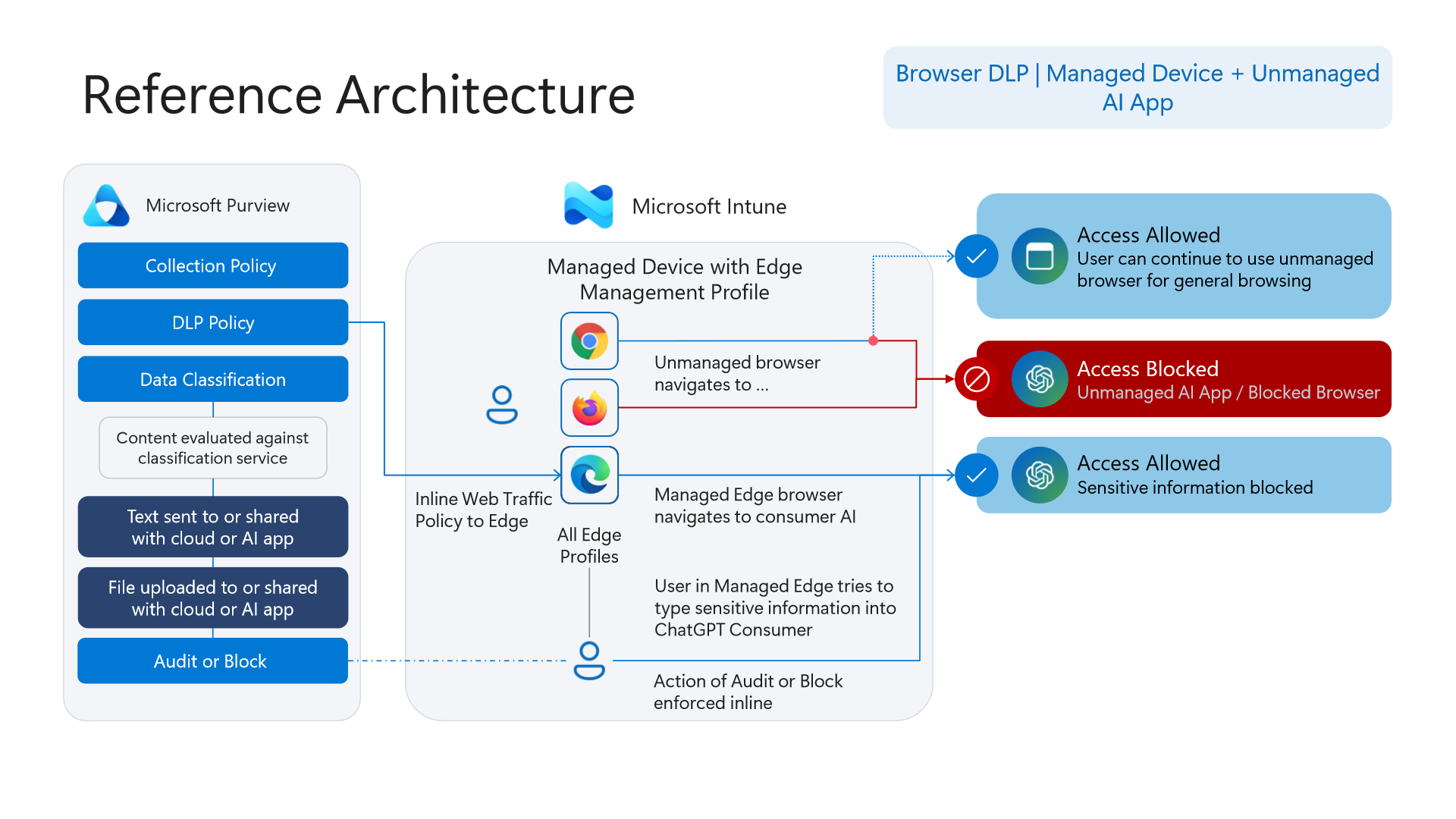
Diagram 8 shows how enterprises allow productivity inside consumer AI tools without blinding data protection across third-party browsers:
- Control Mechanics: Microsoft Intune deploys both the `Edge Management Profile` and `Inline Web Traffic Policy to Edge` onto corporate workstations.
- Unmanaged Browsers (`Chrome`, `Firefox`): General web browsing remains `Allowed`, preventing friction on legacy portals, while attempts to reach `Unmanaged AI apps` (such as ChatGPT Consumer) from unmanaged browsers are `Blocked`.
- Funneled `Edge for Business` Inspection: Accessing AI endpoints inside corporate
Edge for Businesssucceeds, while Inline Browser DLP evaluates prompts and file uploads live (AuditorBlock). Design tip: Steering consumer AI access exclusively into Edge eliminates the extension-maintenance burden across non-Edge browsers for sensitive AI workflows.
2. Topology B: Unmanaged BYOD Device + Managed App (`Edge Work Profile`)
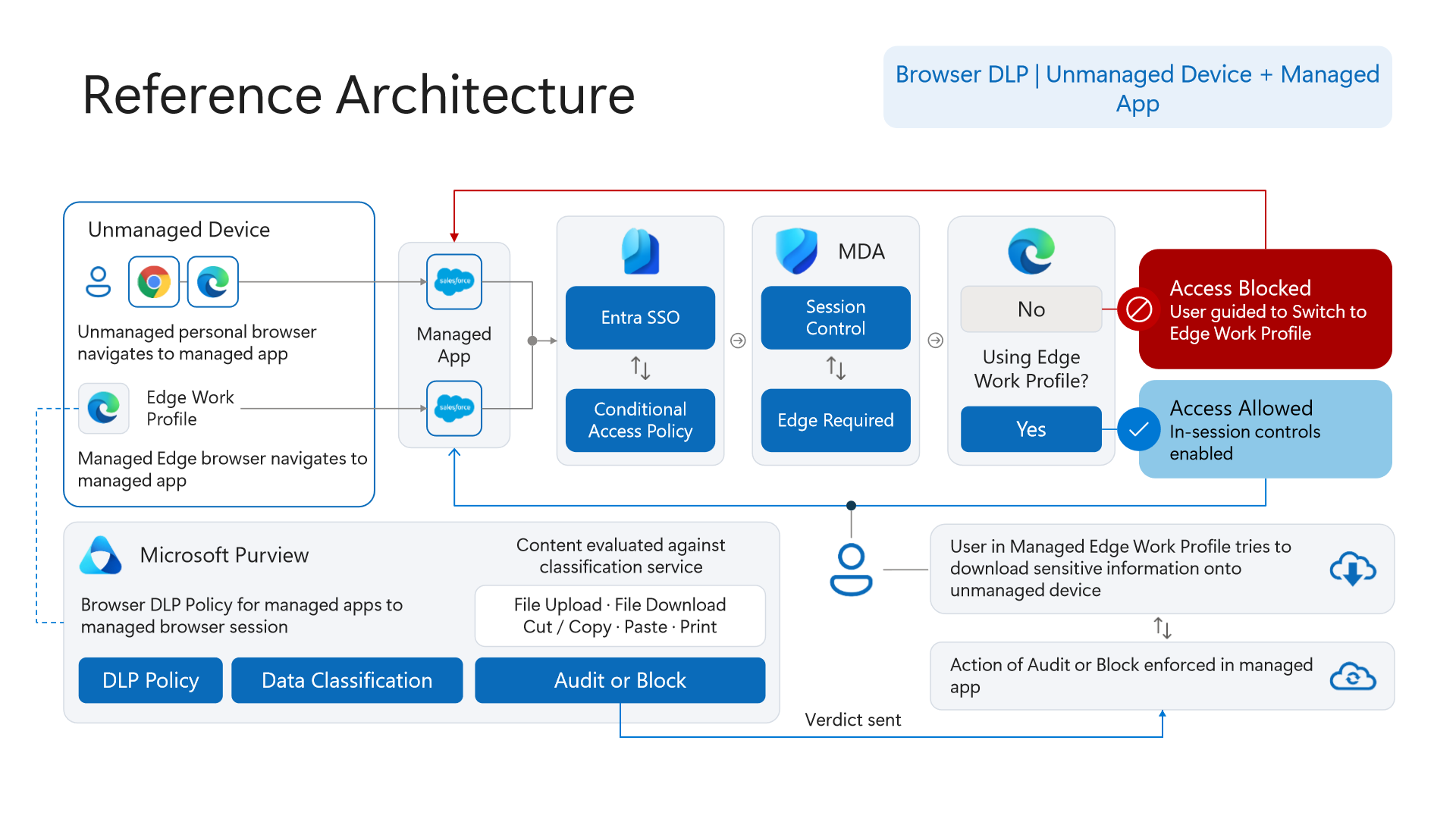
Diagram 9 protects corporate cloud workspaces when users sign in from personally owned (Unmanaged) endpoints lacking MDM enrollment or Endpoint DLP agents:
- Identity-to-Browser Isolation Chain: Signing into Microsoft 365 triggers `Entra SSO` -> `Conditional Access` -> `Defender for Cloud Apps (MDA) Session Control` -> `Edge Required`.
- Forced Transition to `Edge Work Profile`: Personal browser sessions are denied access to corporate resources and presented with a `Guided switch to Edge Work Profile` prompt, isolating corporate cookies, tokens, and tabs inside a clean work profile.
- Five Inline In-Session Controls (`Verdict sent`): Inside `Edge Work Profile`, Purview enforces `File Upload`, `File Download`, `Cut / Copy`, `Paste`, and `Print` inline without an MDM agent (
AuditorBlock). See Microsoft Purview Browser DLP, Intune, and BYOD AI Data Protection for expanded Conditional Access rollout steps.
3. Topology C: Non-Browser Apps & Bidirectional `Entra GSA` Network DLP
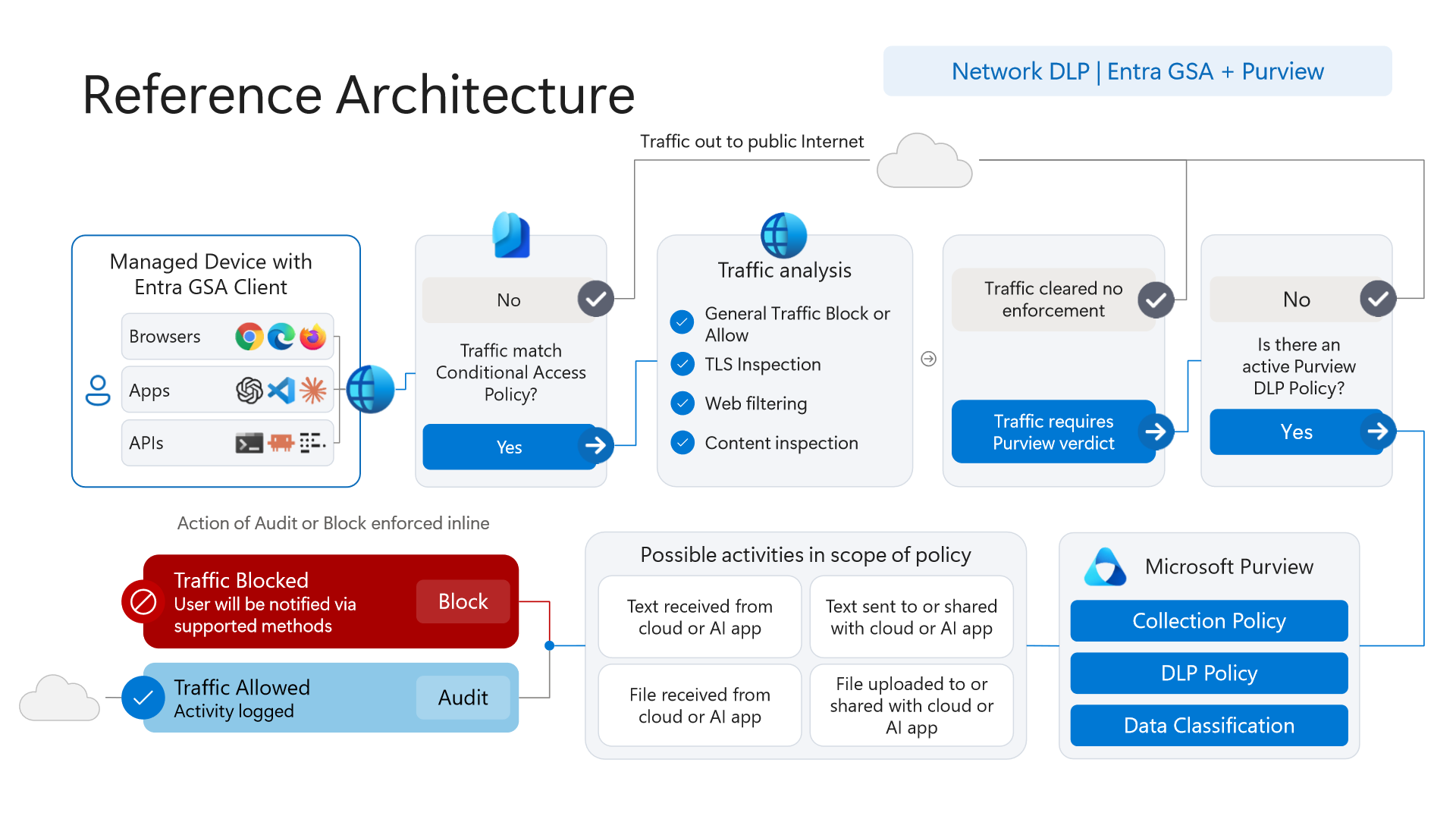
Diagram 10 closes the gap left when thick desktop clients, scripts, or direct `APIs` bypass browser DOM inspection altogether:
- `Entra Global Secure Access (GSA) Client` Steering: Deployed onto managed workstations, the
GSA Clientforwards Conditional Access-matched traffic from `Browsers`, `Apps`, and `APIs` directly into Microsoft's Security Service Edge (SSE). - `Traffic Analysis` (`TLS Inspection`, Web Filtering, Content Inspection): Cloud TLS inspection decrypts in-flight payloads and evaluates active Purview `Collection Policy` and `DLP Policy` definitions inline.
- Bidirectional Inline Inspection (`Sent` AND `Received`): Unlike browser DOM hooks that focus primarily on user outbound actions, Diagram 10 explicitly demonstrates bidirectional evaluation across both `Text/File sent to cloud or AI app` AND `Text/File received from cloud or AI app`—catching both prompt/file exfiltration and risky model responses or file pulls inline.
- Operational Configuration Guidance: When enabling
TLS Inspection, configure safe TLS bypass rules for certificate-pinned banking apps and Windows update endpoints, while keeping generative AI and unapproved cloud file-share categories inside deep content inspection scope.
4. Verification via PowerShell and KQL (`NetworkAccessTraffic`)
Audit active Conditional Access policies enforcing MDA session control alongside NetworkAccessTraffic logs confirming inline Entra GSA inspection and denials.
# Prerequisite: Microsoft.Graph.Identity.SignIns and ExchangeOnlineManagement modules installed.
# Execution Separation: Inspection commands are read-only; state-changing examples (-WhatIf) must be validated in a pilot group before production rollout.
# 1. Inspect enabled Entra Conditional Access policies configured with MDA Session Controls
Connect-MgGraph -Scopes "Policy.Read.All"
Get-MgIdentityConditionalAccessPolicy | Where-Object {
    $_.State -eq "enabled" -and $_.SessionControls.CloudAppSecurity.IsEnabled -eq $true
} | Select-Object DisplayName, Id, State

# 2. List Purview DLP policies and check current simulation/enforcement modes
Connect-IPPSSession
Get-DlpCompliancePolicy | Select-Object Name, Mode, CreationTimeUtc

# 3. Safely simulate testing a Network/Browser DLP policy with -WhatIf
Set-DlpCompliancePolicy -Identity "Network-AI-Traffic-DLP" -Mode TestWithNotifications -WhatIf
Query Entra Global Secure Access `NetworkAccessTraffic` in Log Analytics or Microsoft Sentinel to inspect denied destinations, AI app flows, and byte volumes (SentBytes / ReceivedBytes).
// Execution Scope: Read-only hunting query (Defender XDR Advanced Hunting / Log Analytics; requires Security Reader role)
// Data Source: Microsoft Entra Global Secure Access (Sentinel / Log Analytics) - NetworkAccessTraffic
NetworkAccessTraffic
| where TimeGenerated > ago(7d)
| where TrafficType == "internet"
| where Action == "Denied" or DestinationFqdn has_any ("openai.com", "chatgpt.com", "claude.ai", "anthropic.com")
| project TimeGenerated, UserId, DeviceOperatingSystem, TrafficType, Action, PolicyName, DestinationFqdn, SentBytes, ReceivedBytes
| sort by TimeGenerated desc
5. Licensing, RBAC, and Engineering Limitations
- Licensing: Managed-device Browser DLP requires Microsoft 365 E5 / Microsoft Purview Suite; agentless BYOD session isolation requires Microsoft Defender for Cloud Apps (`MDA`) plus Entra ID P1/P2; and bidirectional Network DLP with `Entra GSA TLS Inspection` requires Microsoft Entra Suite / Microsoft Entra Internet Access alongside Purview DLP coverage.
- RBAC: Conditional Access and Global Secure Access configuration requires
Conditional Access AdministratororGlobal Secure Access Administrator; Purview DLP policies requireCompliance Administrator. - Limitations: BYOD
Edge Work Profilecontrols govern Entra-authenticated SaaS sessions only—they do not inspect local filesystem actions on personal devices. EnablingTLS InspectionviaEntra GSArequires deploying trusted root certificates to managed endpoints and maintaining TLS bypass lists for pinned-certificate binaries.
Critical Architectural Assessment and Rollback Strategy
- Risks Mitigated vs. Residual Risk Boundary:
Edge Work Profile, session controls, andEntra GSANetwork DLP govern SaaS and generative-AI uploads across managed and BYOD workflows, yet they do not control BYOD local filesystem copies, non-Entra SaaS destinations, or pinned-certificate native binaries excluded from TLS inspection. - New Dependencies and Production Failure Modes: Network DLP introduces dependencies on enterprise root-CA deployment, Global Secure Access forwarding profiles, and curated
TLS bypasslists. Missing trusted root certificates or inspecting certificate-pinned clients causes immediate TLS handshake outages in production. - Rollback and Pilot Validation Procedure: To recover from application breakage, add affected FQDNs to the
Entra GSA TLS bypasspolicy, switch inline web/network DLP rules toTestWithNotifications, and scope Conditional Access session controls back to a pilot group.
Microsoft Purview Referential Architecture 8-Part Series Index
- Part 1: End-to-End Architecture & Cause-and-Effect Chain
- Part 2: Classification Engines (`MCE` vs. `DCS`), Label Precedence & Unified Catalog
- Part 3: SharePoint & OneDrive DLP: 6 Scenarios, First Guest Access, `DLP Rule Undo` & `UDP`
- Part 4: Endpoint DLP Internals: `SenseCE.exe`, `File EAs`, 30s JIT & Clipboard Limits
- Part 5: Exchange Transport (`DPS -> DCS -> ETR -> DLP`), Policy Tips & `2M` Partial Scan
- Part 6 (This Article): Browser DLP, BYOD
Edge Work Profile&Entra GSANetwork DLP Configuration - Part 7: `Collection Policies` Pre-Ingestion Gate, `Insider Risk Management` & Adaptive Protection
- Part 8: Microsoft 365 Copilot & Cowork DLP, 7-Layer Oversharing Shield & Storage Mapping
Verified Primary Sources & Open-Source Repositories
This architectural guide was cross-corroborated against the official advisories, Microsoft Learn docs, and open-source PowerShell / KQL repositories below.
- SOURCEtechcommunity.microsoft.com/blog/microsoft-purview-blog/microsoft-pur
- SOURCElearn.microsoft.com/en-us/purview/dlp-browser-dlp-learn-about
- SOURCElearn.microsoft.com/en-us/purview/dlp-network-learn-about
- SOURCElearn.microsoft.com/en-us/entra/global-secure-access/how-to-i
- SOURCElearn.microsoft.com/en-us/azure/azure-monitor/reference/table
Multi-Channel Distribution Summary (X & LinkedIn Draft)
Toggle X (Twitter) & LinkedIn sharing drafts
Multi-Channel Distribution Summary (X & LinkedIn Draft)
Toggle X (Twitter) & LinkedIn sharing draftsHow do you allow general Chrome browsing while steering AI traffic into Edge for Business, isolate BYOD sessions inside Edge Work Profile without MDM agents, and inspect native AI APIs via Entra GSA TLS Inspection? Purview Architecture Series [Part 6/8]. #MicrosoftPurview #BrowserDLP #EntraGSA
In Part 6 of our 8-part Microsoft Purview Referential Architecture Series, we examine configuring Browser DLP and Network DLP across three topologies: Intune Inline Web Traffic Policy for managed devices, BYOD Edge Work Profile via Entra + MDA, and bidirectional Entra GSA Network DLP.